

Tutorial: single-page scraping (Wikimedia Commons)
The first three tutorials scraped lists — books, quotes, cars. But not every URL is a list. The Wikimedia Commons Main Page is one record: a featured Picture of the day, a welcome blurb, contribution guides. There is no repeating item for the detector to find — which is exactly what single-page mode is for.
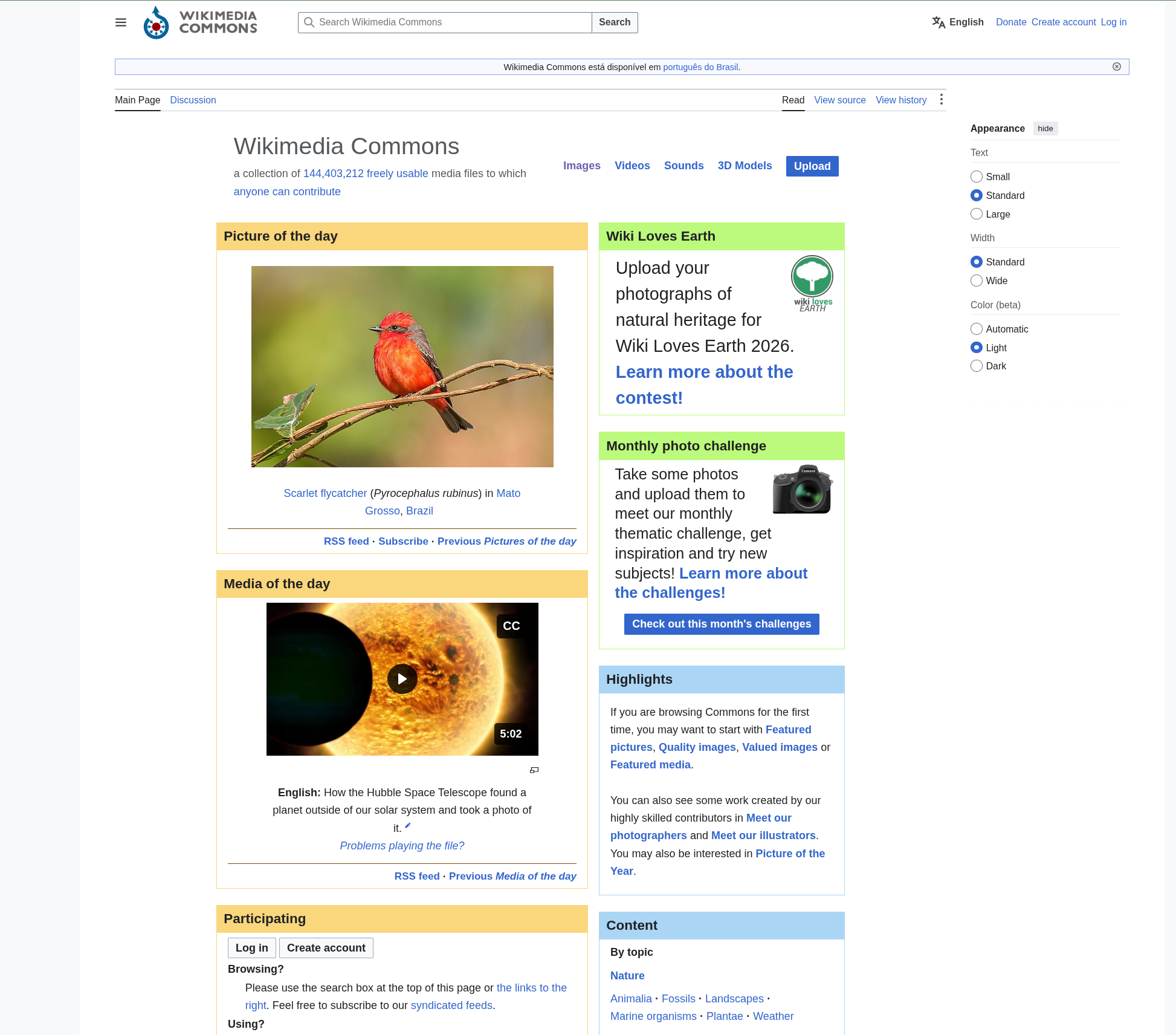
This walkthrough scrapes that page three times, each run one flag better: --single-page alone, then --main-content to cut the site chrome, then a --fields whitelist for a clean final record. Everything below is real output.
Docker vs. local
As in the other tutorials, prefix each command with docker compose run --rm when using the reference Docker stack.
Step 1 — Generate with --single-page
On a page with no repeating list, a normal generate stops with "Could not detect a repeating item list". --single-page skips list detection and treats the whole page as a single item:
docker compose run --rm artisan datahelm:scrap:generate \
  "https://commons.wikimedia.org/wiki/Main_Page" \
  --single-page --robot-name=commonsWikimediaOrg
· Auto-selected transport: guzzle (baked into the robot).
· Auto-enabled dedup on "link" (pass --no-dedup to disable).
· Transport 'guzzle' succeeded.
· Single-page mode: treating the whole page as one item (item_selector "body",
  pagination disabled) instead of detecting a repeating list.
Robot command written to app/Console/Commands/RobotsCommand/RobotCommonsWikimediaOrg.php
Run it with: php artisan datahelm:robot:commonswikimediaorg
The blueprint core is exactly what the single-page guide promises:
{
  "url": "https://commons.wikimedia.org/wiki/Main_Page",
  "item_selector": "body",
  "scrape_detail": false,
  "pagination": { "strategy": "none", "css": "" },
  "fields": [
    { "name": "title",       "css": "h1#firstHeading" },
    { "name": "image",       "css": "img.mw-file-element", "attribute": "src" },
    { "name": "description", "css": "p" },
    { "name": "rating",      "css": "style", "regex": "/\\d+(?:\\.\\d+)?/" },
    { "name": "main_menu",      "css": "", "label": "Main menu" },
    { "name": "personal_tools", "css": "", "label": "Personal tools" },
    { "name": "using",          "css": "", "label": "Using?" }
  ]
}
(Trimmed — detection found several more label-based fields.) Field detectors ran against the entire <body> instead of a list-item sample, so alongside good finds (h1#firstHeading, the picture, the welcome paragraph) they also picked up things a whole page inevitably contains. Hold that thought for Step 3.
Step 2 — Run it
docker compose run --rm artisan datahelm:robot:commonswikimediaorg
fetching: https://commons.wikimedia.org/wiki/Main_Page
Saved 1 item(s) to storage/app/scrapes/commonswikimediaorg.json

--- Crawl stats ---
  Items scraped : 1 in 1s (0.5/s)
  Pages         : 1 fetched, 0 failed
One URL, one item. And the robot's per-item closure downloaded the image field's photo — that day's Picture of the day, a Scarlet Flycatcher by Giles Laurent:
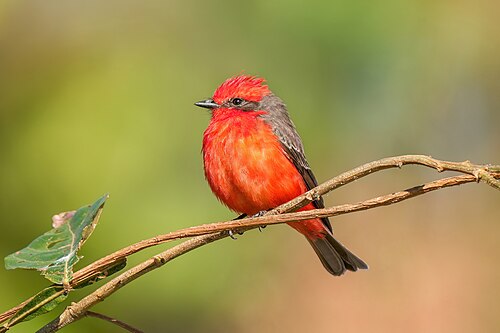
The record (trimmed):
{
  "title": "Main Page",
  "image": "https://upload.wikimedia.org/wikipedia/commons/thumb/6/64/095_Scarlet_Flycatcher_…jpg",
  "rating": "1040",
  "description": "If you are browsing Commons for the first time, you may want to start with Featured pictures…",
  "main_menu": "move to sidebar",
  "personal_tools": "Donate Create account Log in",
  "using": "To fulfill the free license requirements, please read our Reuse guide…",
  "https": "//commons.wikimedia.org/w/index.php?title=Main_Page&oldid=1218984483",
  "image_path": "scrapes/images/commons.wikimedia.org/500px-095_Scarlet_Flycatcher_…jpg"
}
Step 3 — Read the output critically
Three kinds of noise, all typical of whole-page detection:
- Site chrome leaked into fields.
main_menu: "move to sidebar"andpersonal_tools: "Donate Create account Log in"are the MediaWiki navigation, not content — the label detector saw the whole<body>, nav included. rating: "1040"is garbage. The rating detector matched a<style>tag and the regex happily extracted a number from CSS. Detection is generous by design; deleting junk fields is your half of the deal.httpsis a label field gone wrong — page text that merely looked like alabel: valuepair.
Step 4 — Re-generate with --main-content
Chrome leakage has a dedicated switch. --main-content (the equivalent of Firecrawl's onlyMainContent) scopes detection to the page's primary content region — add --force to overwrite the robot:
docker compose run --rm artisan datahelm:scrap:generate \
  "https://commons.wikimedia.org/wiki/Main_Page" \
  --single-page --main-content --robot-name=commonsWikimediaOrg --force
· Main-content scope: fields detected inside 'main#content' (site chrome excluded).
· Single-page mode: treating the whole page as one item (item_selector "main#content",
  pagination disabled) instead of detecting a repeating list.
The detector found MediaWiki's main#content region and baked it in as the item selector. Re-running the robot: main_menu and personal_tools are gone — they live outside main#content. Honest caveat: it's a scope, not a filter — a couple of noisy fields (rating from an in-content <style>, a "move to sidebar" label that also appears inside the region) survived. Which brings us to the last flag.
Step 5 — Whitelist with --fields
When you already know which fields you want, skip the pruning: --fields keeps only the named ones:
docker compose run --rm artisan datahelm:scrap:generate \
  "https://commons.wikimedia.org/wiki/Main_Page" \
  --single-page --main-content --fields=title,image,description \
  --robot-name=commonsWikimediaOrg --force

docker compose run --rm artisan datahelm:robot:commonswikimediaorg
The final record, in full — no trimming needed this time:
{
  "title": "Main Page",
  "image": "https://upload.wikimedia.org/wikipedia/commons/thumb/6/64/095_Scarlet_Flycatcher_in_Encontro_das_%C3%81guas_State_Park_Photo_by_Giles_Laurent.jpg/500px-095_Scarlet_Flycatcher_in_Encontro_das_%C3%81guas_State_Park_Photo_by_Giles_Laurent.jpg",
  "description": "If you are browsing Commons for the first time, you may want to start with Featured pictures, Quality images, Valued images or Featured media.You can also see some work created by our highly skilled contributors in Meet our photographers and Meet our illustrators. You may also be interested in Picture of the Year.",
  "image_path": "scrapes/images/commons.wikimedia.org/500px-095_Scarlet_Flycatcher_in_Encontro_das__C3_81guas_State_Park_Photo_by_Giles_Laurent.jpg"
}
Schedule that robot daily and you have a Picture of the day archiver in three flags.
Turn the page into LLM-ready Markdown
Single-page mode is the natural companion of the markdown field type and output format: add a "type": "markdown" field over the content region (or set output_config.format: "markdown") and this same robot emits a clean, RAG-ready document — the package's equivalent of Firecrawl's /scrape endpoint. See Pairs well with Markdown output.
Recap
# whole page as one item
… datahelm:scrap:generate "<url>" --single-page --robot-name=example

# …scoped to the main content region (skips nav/footer/sidebar)
… datahelm:scrap:generate "<url>" --single-page --main-content --robot-name=example --force

# …keeping only the fields you name
… datahelm:scrap:generate "<url>" --single-page --main-content --fields=title,image,description \
    --robot-name=example --force
--single-pageturns "Could not detect a repeating item list" into a one-item crawl (item_selector: "body", paginationnone).- Whole-page detection will pick up chrome and junk — read the first record before trusting it.
--main-contentscopes detection tomain#content-style regions;--fieldswhitelists the rest of the way.- The scaffolded robot downloads the
imagefield automatically — no extra flags needed for a single photo.
Where to go deeper: Single-page mode · Markdown / LLM output · Generate a blueprint.
Next, scrape behind a login → — replay a session cookie to reach an authenticated employee directory, and let auto find the JSON API behind it.